
Where Can I Use Z-Image Turbo? The Definitive Guide to Deployment and Training
Where Can I Use Z-Image Turbo? The Definitive Guide to Deployment and Training
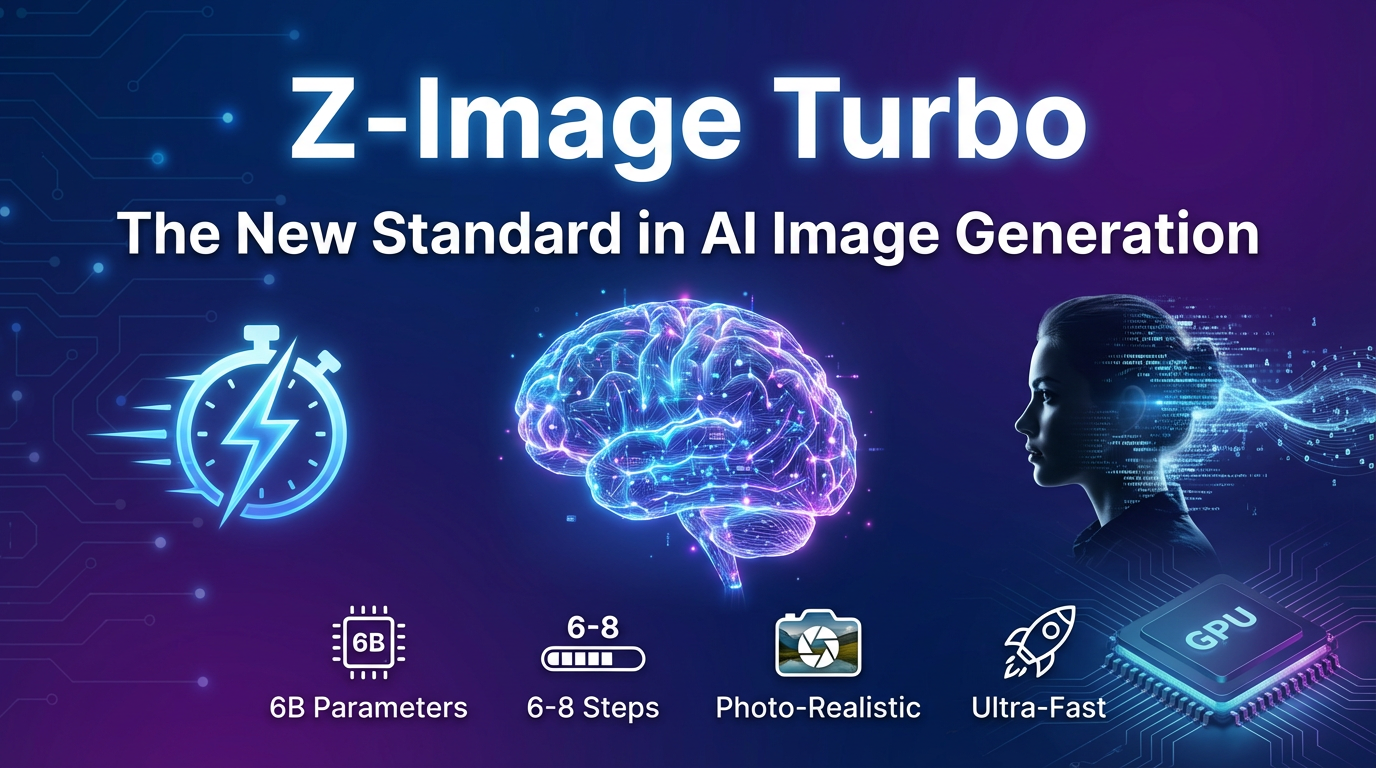
The Z-Image Turbo model, an amazing new image model that runs well on low power GPUs and produces phenomenal results [1], offers versatility in its usage. Determining where can I use Z-Image Turbo depends primarily on whether your goal is customized training or seeking the most convenient and quickest path for image generation.
The most convenient and highly recommended way to access the model for immediate, high-speed image generation is through https://z-image.ink.
1. Instant Image Generation Path (Inference) via https://z-image.ink
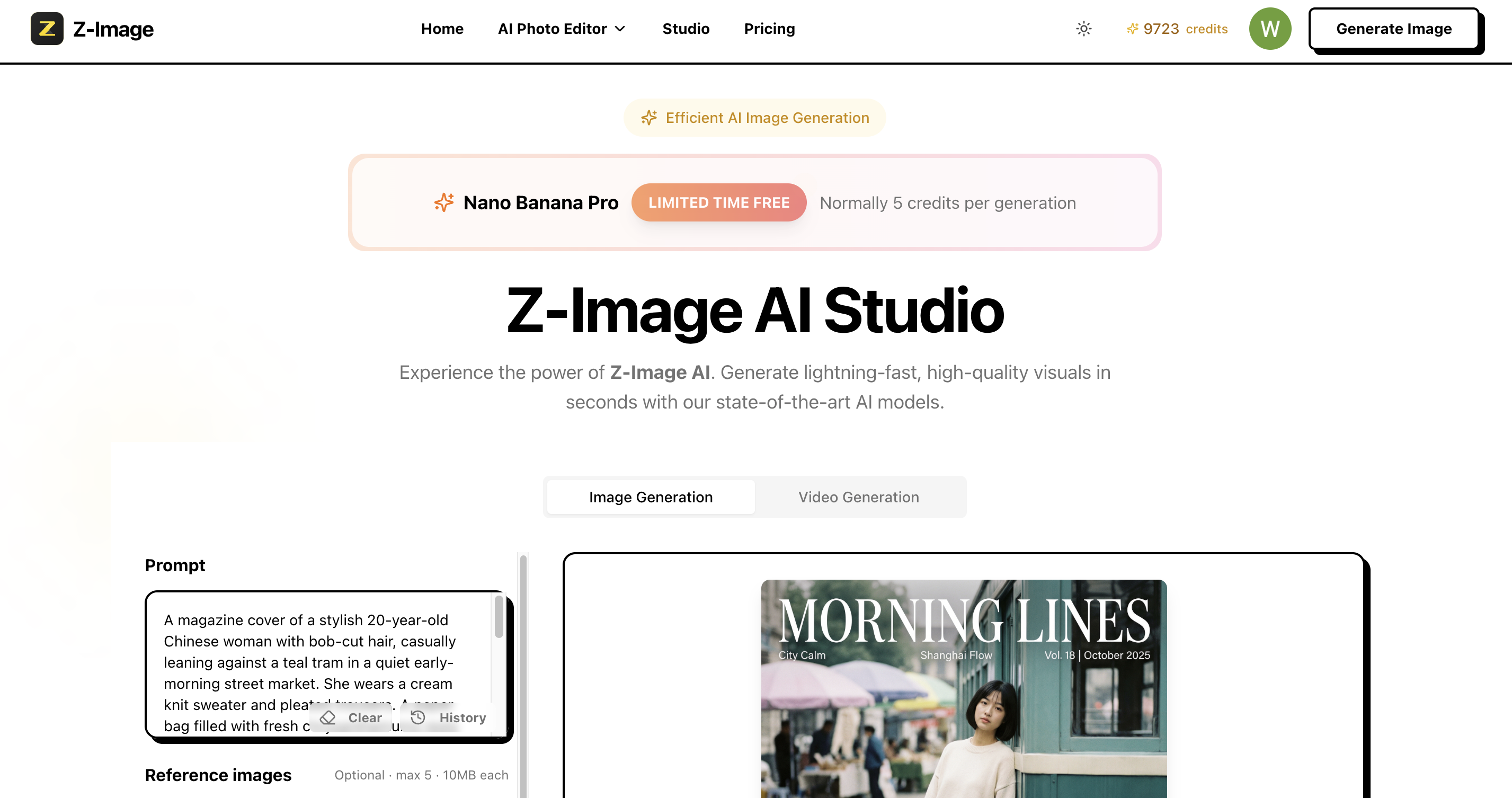
For users seeking high speed, reliability, and the lowest operational costs, https://z-image.ink is the most recommended path for image inference. This option is designed for maximum convenience and minimal friction.
- Extreme Speed Experience: This method, typically utilizing Serverless technology, provides an optimized, ready-to-use access interface for the Z-Image Turbo generator. This deployment allows you to immediately enjoy the model’s cost-effectiveness and rapid inference latency.
- No Configuration Required: Using https://z-image.ink avoids the need to manually set up complex Python environments, virtual environments, and Serverless configurations, offering a straightforward answer to where can I use Z-Image Turbo for instant results.
2. Customized Training Environment (LoRA Creation)
If you require deep customization—such as creating a LoRA file to teach the Z-Image Turbo model new concepts—you need a dedicated, specialized environment:
- Cloud Computing Platform: You must deploy a powerful GPU, such as the RTX 5090, on a cloud platform like RunPod. This hardware is sufficient for training this model [1].
- Professional Toolkit: The software environment must be customized. You must deploy the Ostris AI toolkit latest template [1]. This toolkit is the professional environment for managing datasets (e.g., using nine images used to train a Flux LoRA) and executing the training task [1].
- Training Adapter: In the training configuration, you must select Z image turbo with the training adapter [1]. Note that you might need to adjust the training adapter path from a V1 to a V2 as the application creator tests improvements [1].
3. Usage Within Your Workflows (Deployment)
Whether you are using the base model or a custom LoRA, the final step involves integrating the assets into a generation workflow:
- Download Checkpoint: Once the LoRA training is complete (which takes roughly about an hour or so for 3,000 steps) [1], you can download this latest checkpoint from the overview and checkpoints sections [1].
- Integrate and Load: You need to use the downloaded LoRA file within your workflows [1], ensuring the LoRA is correctly loaded.
- Activate Concept: To activate the concept, you must include the trigger word set during training in your prompt [1]. When successful, the output—such as a “school teacher shooting a basketball smiling”—looks phenomenal [1].
In summary, the Z-Image Turbo model’s ability to run well on low power GPUs and produce phenomenal results makes it highly versatile. Where can I use Z-Image Turbo depends on your needs: for the most straightforward and fastest generation, use https://z-image.ink; for custom asset creation, utilize the dedicated cloud training environment.
David
Founder of Z-Image. Passionate about AI and technology. Exploring the boundaries of generative models and sharing insights with the community.